Guide
How to customize Pro Builder
Everything you need to make Pro Builder your own construction and real estate website: get a copy, build new pages with the AI agent, or edit colours, text and content by hand.
Get the template
Click Remix (or Get Template on the demo site). Framer copies the whole website into your workspace: every page, the CMS, styles and components. You edit your own copy; the demo stays as it is.
Build with the AI agent
Pro Builder comes with a design-system skill. It tells Framer’s AI agent which colours, text styles, components and spacing to use, so new pages match the rest of the site.
Open your copy in Framer and click the AI button at the top of the editor.
Type /design-system to load the Pro Builder skill.
Ask in plain words, then check every breakpoint.
Try one of these prompts:
“Add a Careers page with Team Cards and a Get a Quote button.”
“Make a Featured Projects section for the About page with Project Cards.”
“Add a Results section to the Service page with Stats.”
“Create an FAQ section for the Contact page with Accordions.”
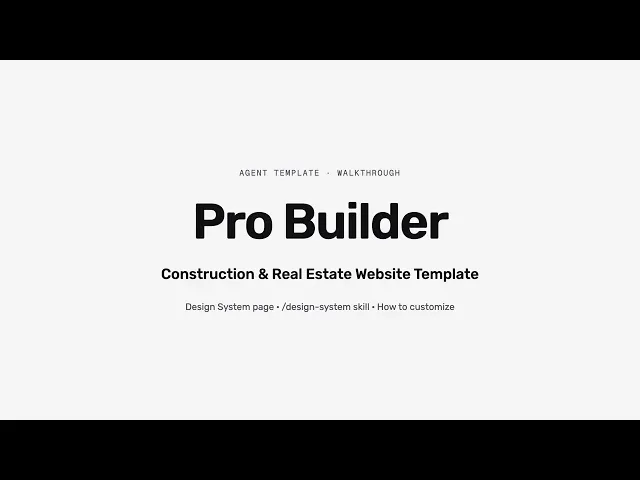
Watch the walkthrough
A short tour of the editor: the Design System page, the /design-system skill and this guide.
Edit by hand
Colours: open Assets › Colors and edit a style such as Brand/Primary. Every page updates.
Fonts: Pro Builder uses Rubik and Instrument Serif. Change them in each text style under Assets › Text Styles.
Content: services, projects and blog posts live in the CMS (Service, Project and Blog). Add or edit items there.
Buttons: select a button and change Title and Link in its controls.
Header and footer: edit the Header and Footer components in the Template layout.
Contact form: select the form on the Contact page and set your own email under Send To. It has no destination yet.
Design system
Open the Design System design page in the left panel. It has six boards: How to Use, Colors, Typography, Components (buttons, links, icons, cards and sections), Layout Rules and an Example Page built only from these parts.